App Discovery
ReferenceSee which apps your users access, review the ones you did not expect, and add them to an ITP policy or Service Tunnel
- Last validated: Oct 16, 2026
- 7 minutes to read
-
Contributors

- Overview
- View discovered apps
- Filter apps
- Review an app
- Add an app to a policy or Service Tunnel
- Create a custom app
- Limitations
- What’s next
Overview
App Discovery lists the apps end users in your org access. It works in the following way: The Cloud Secure Edge (CSE) desktop app collects DNS requests leaving each of your end users’ devices, CSE matches those requests against a catalog of more than 6,000 categorized apps (several hundred of which are AI apps), and App Discovery surfaces the result as a table you can sort, filter, and act on.
Users in your org access cloud apps from networks you don’t control, so a network gateway cannot surface this traffic; App Discovery can, and seeing this information can help you identify whether an app belongs in your org.
App Discovery, on its own, is visibility only: It does not block or route anything. However, you act on what you find by adding a discovered app to an ITP policy (for blocking) or to a Service Tunnel (for routing), both of which you can initiate from the discovered app’s details page.
Requirements
- An SIA Basic or SIA Advanced license
- The CSE desktop app installed on end users’ devices: App Discovery reads the DNS requests leaving end users’ devices.
- An ITP policy assigned to the device. The one exception is a Windows device connected to a Service Tunnel, which reports App Discovery data without an ITP policy. See Data collection by platform.
Warning: The CSE Chrome Extension and the CSE mobile app do not report App Discovery data.
Note: After you enable the SIA license, App Discovery can take up to an hour to start populating. An empty table shortly after enabling the license is expected, not a fault. Check again after an hour before you investigate.
Data collection by platform
App Discovery lists only the apps whose DNS requests reach CSE. For CSE to capture a device’s DNS requests, the device needs an ITP policy. The one exception is a Windows device connected to a Service Tunnel:
| Device | Requirement |
|---|---|
| Windows, connected to a Service Tunnel | None |
| Windows, not connected to a Service Tunnel | ITP policy assigned to the device |
| macOS and Linux | ITP policy assigned to the device |
On Windows, the desktop app’s DNS proxy sends DNS requests to CSE while the device is connected to a Service Tunnel. The proxy does not do this on macOS or Linux, so those devices always need an ITP policy.
A device that needs an ITP policy but has none reports incomplete data to App Discovery: Some of the apps the device’s user attempts to access can be missing. If a user you expect to see is missing from an app’s access log, check whether their device has an ITP policy before you treat it as a data problem.
View discovered apps
In the Command Center, go to Internet Access > App Discovery.
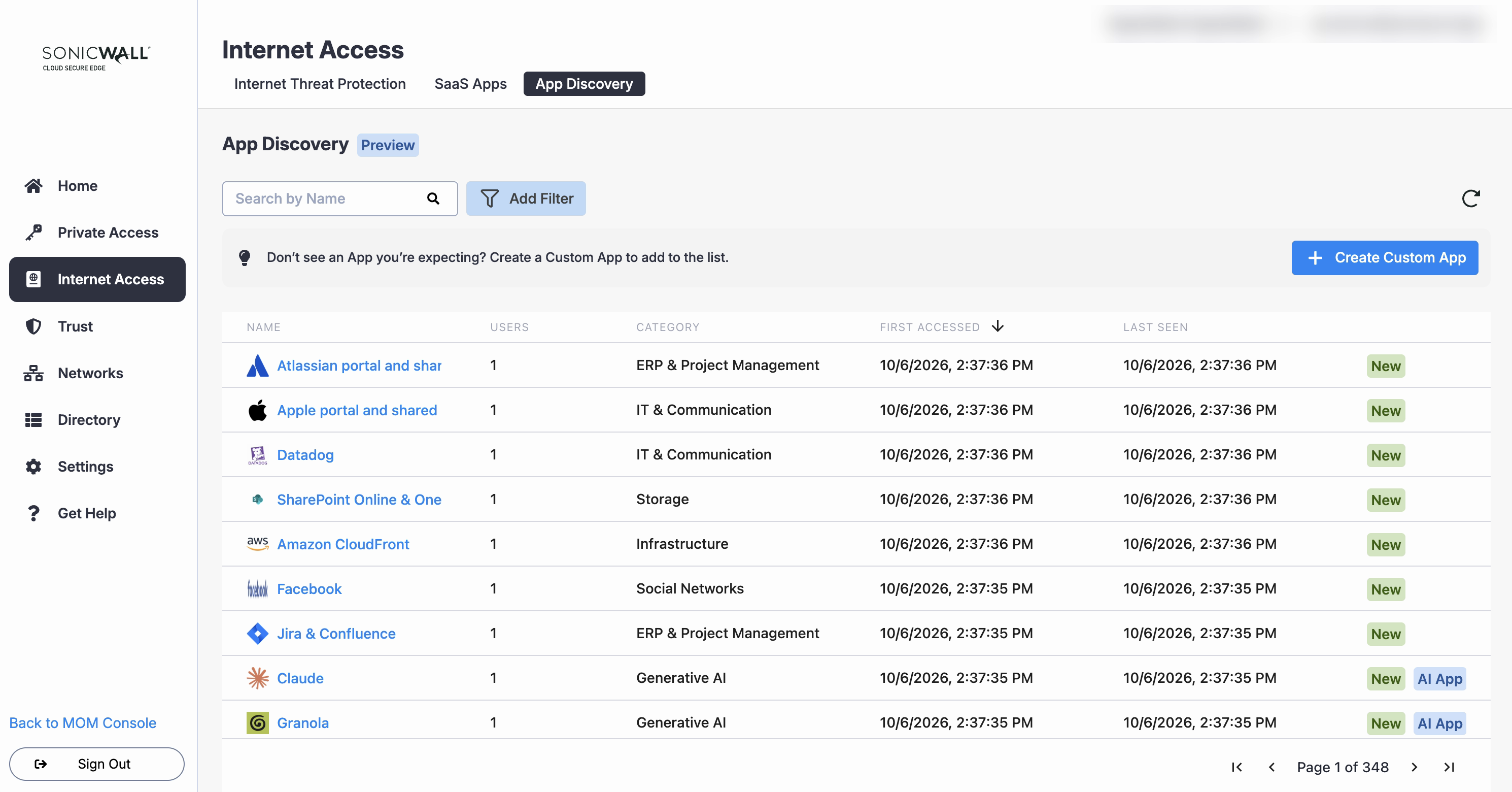
Each row represents an app and provides the following details:
| Column | Description |
|---|---|
| Name | App name from the CSE catalog, or the name you gave a custom app |
| Users | Number of users who accessed the app |
| Category | Catalog category, such as generative AI or collaboration |
| First accessed | Date and time anyone in your org first accessed the app |
| Last seen | Date and time anyone in your org last accessed the app |
The table sorts by First accessed, newest first. Apps you have not seen before are the ones worth reviewing, so they appear at the top. Anything first accessed in the last 30 days also carries a New tag, and apps in the generative AI category carry an AI App tag.
App Discovery has no time limit on the data it keeps. An app’s row stays for as long as the devices and users that accessed it stay registered, so First accessed can be months in the past. When you delete a device or a user, App Discovery removes their accesses, and the app’s Users count and dates update to match.
Note: The table lists the whole catalog, not only what your users access. Apps with no activity sort below the ones with activity and show no users and no dates. If you search for an app and find a row, that tells you CSE can categorize it. It does not tell you anyone is using it.
Filter apps
To find one app, type its name in Search by Name. To narrow the table, select Add Filter and choose one or more of these filters:
| Filter | Values |
|---|---|
| Status | Ignored, Not ignored |
| Source | SonicWall, Custom |
| Category | Any catalog category, including generative AI |
| Country | Any country |
Country is where the app’s publisher is headquartered, not where your user was. For example, filtering for Australia returns Atlassian, because Atlassian is an Australian company. To see where your users connect from, use Logins.
Ignore an app
Ignoring an app does not change how its traffic is treated; it simply sets a flag that the Status filter reads.
Its purpose is to help with your reviewing of apps. You might already know your organization uses Microsoft 365, and that row crowds out the apps you have not seen before and need to review. Ignore the apps that you expected, and then filter on Not ignored. This will give you a clear view of the apps you need to review.
Review an app
Select an app to open its page.
Overview shows the publisher, the country in which the publisher is headquartered, the app category, and any Service Tunnels or ITP policies that already reference the app. If a Service Tunnel or ITP policy is listed, someone has already decided how CSE handles the app. Check that entry before you add the app anywhere else.
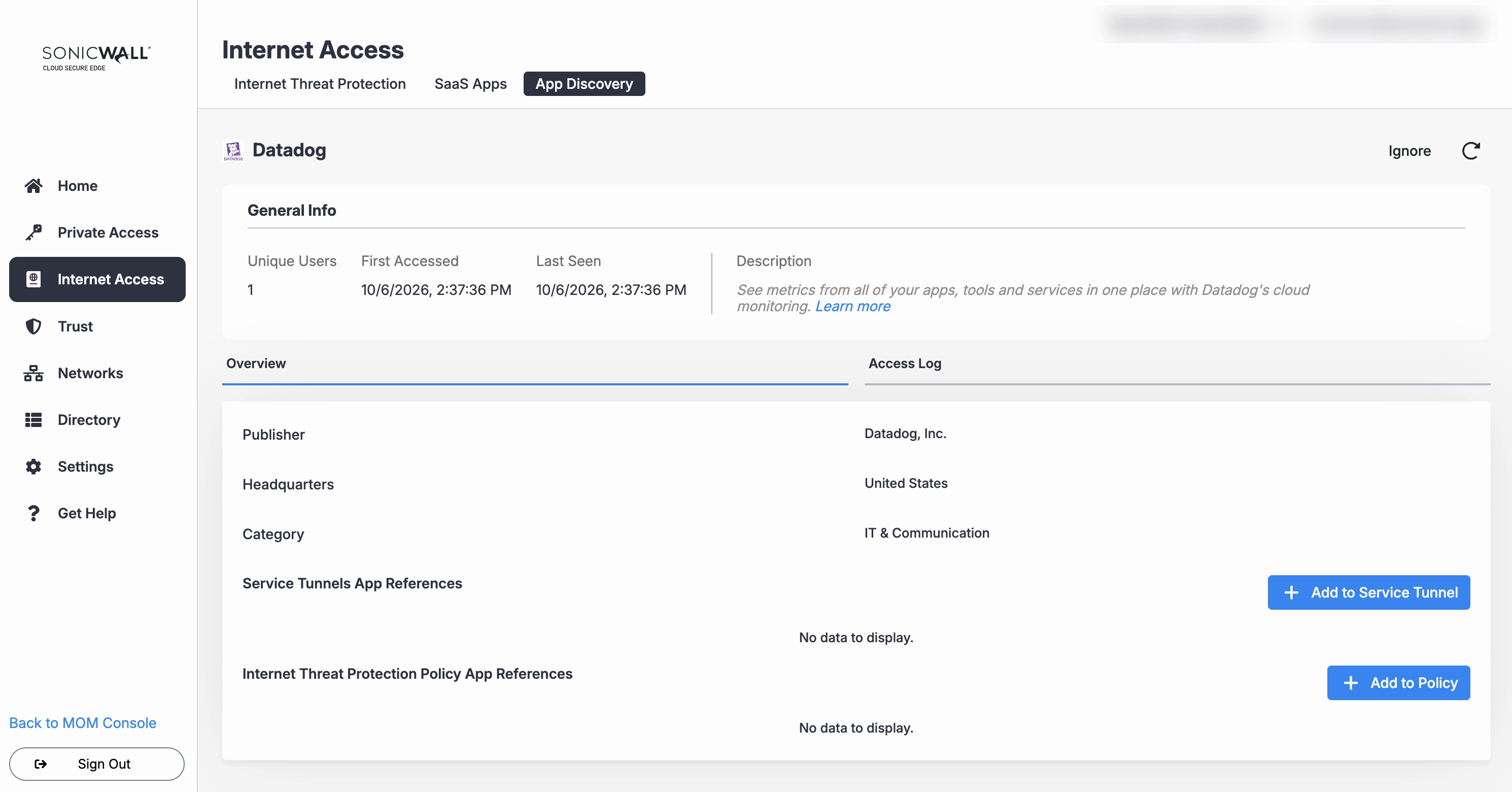
The Domains list on an app’s page appears only for custom apps, because you entered those domains yourself. For apps from the CSE catalog, the page does not show which domains CSE uses to recognize the app. For example, CSE might count both slack.com and slack-edge.com as Slack, but the page does not show you that list.
This matters if you also handle the app by domain somewhere else, such as in a firewall rule or an ITP policy’s Domain and URL Bypass list. App Discovery cannot tell you whether those entries cover every domain CSE counts as that app.
Access log lists one entry per device and user pair, with the time of that pair’s most recent access. Use it to see who accessed the app from which device.
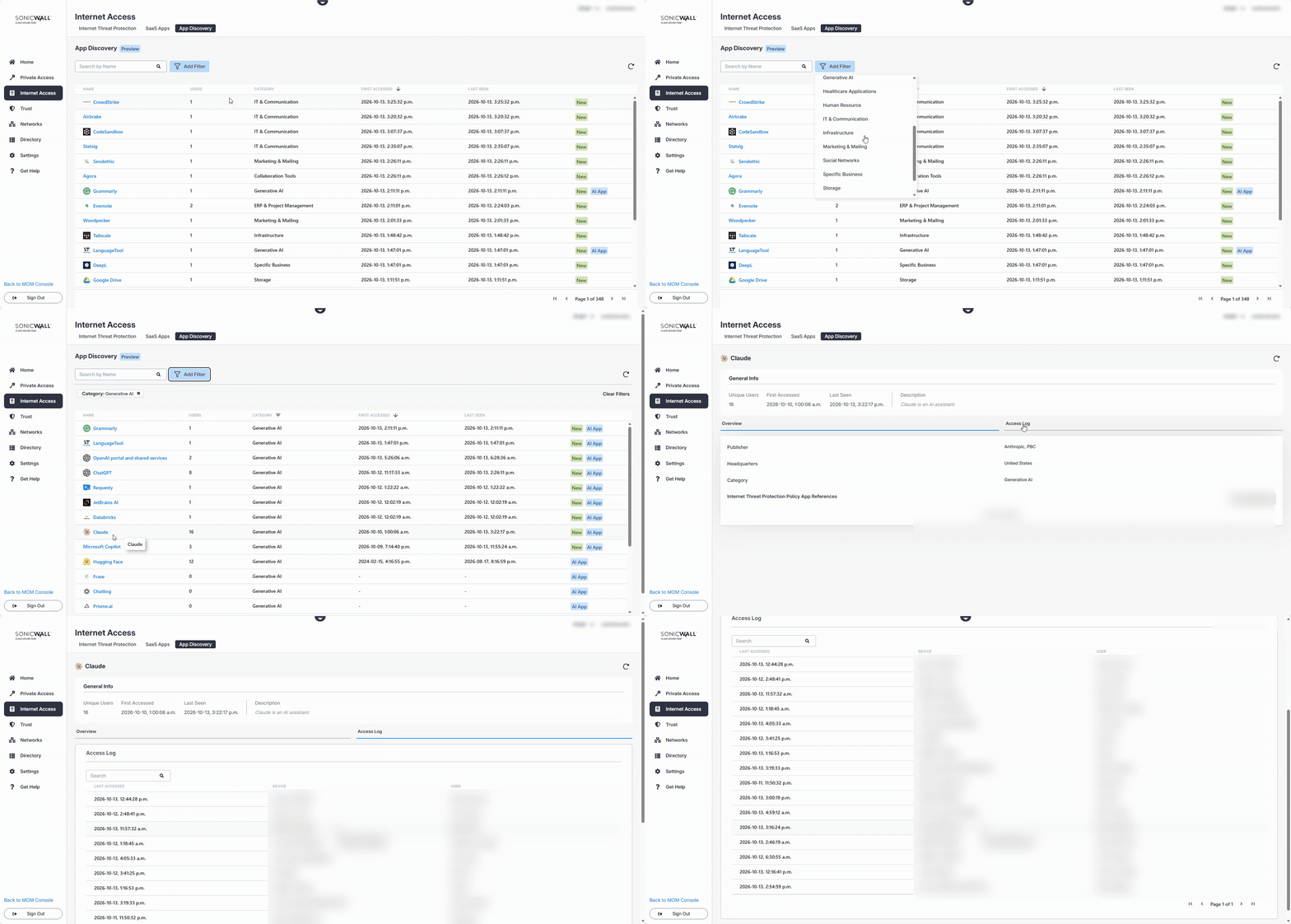
Warning: An entry is written whether the request was allowed or blocked, and the log does not say which. Read an entry as an access attempt. For the allow or block verdict, use SIA access logging.
Add an app to a policy or Service Tunnel
You can act on a discovered app in two ways, from buttons on its page. A Service Tunnel is a routing decision. An ITP policy is a policy decision.
Add to Policy
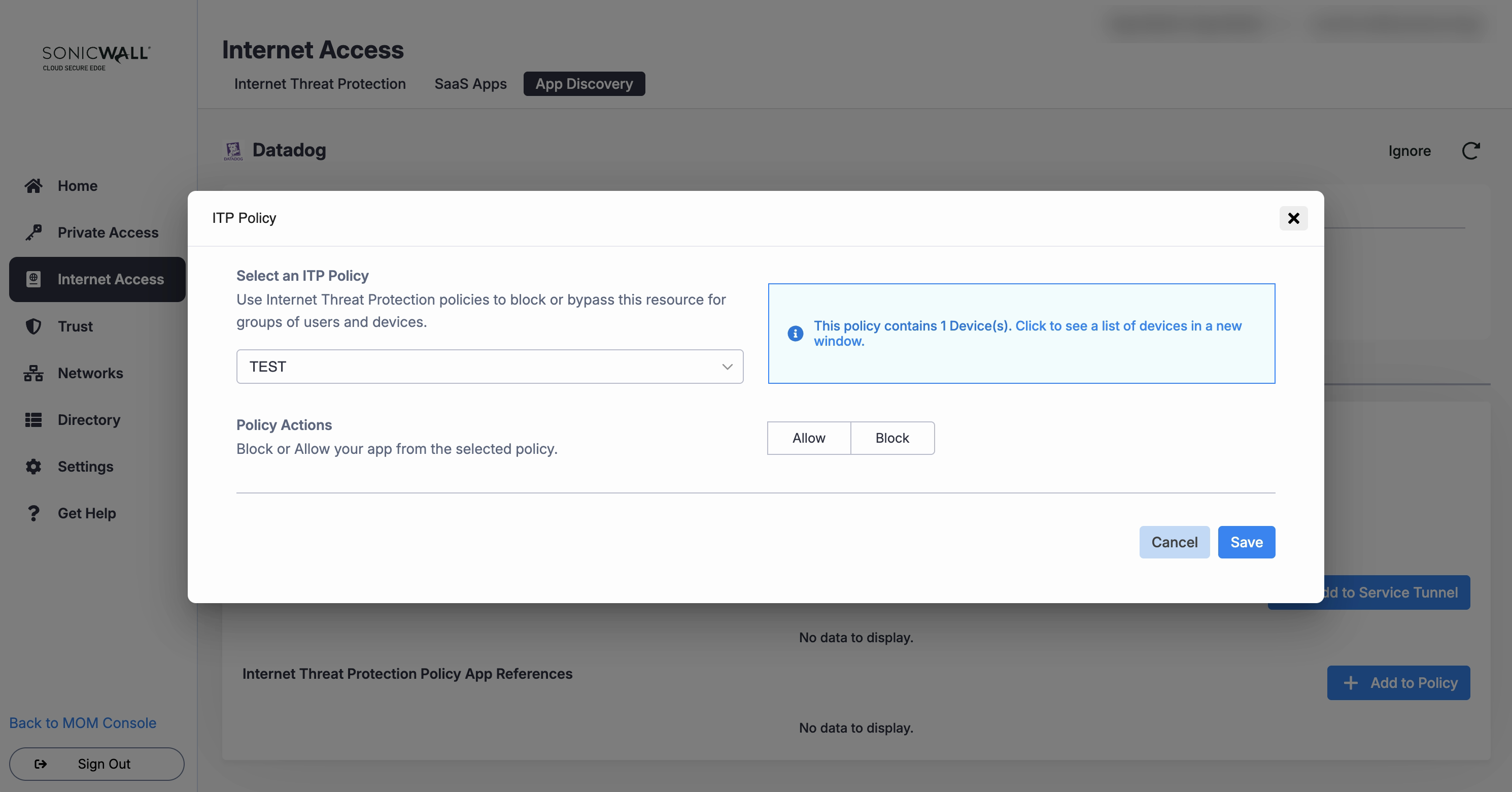
Pick an ITP policy, and then select Allow or Block for the app. Block adds the app to the policy’s Application Blocking list. Allow adds it to the policy’s Application Bypass list, so its traffic is not inspected. The dialog shows how many devices the policy applies to, so you can see how far the change goes before you save it.
Add to Service Tunnel
Pick a Service Tunnel, and then select Include or Exclude for the app. Include sends the app’s traffic through the Service Tunnel. Exclude sends it straight from the device, outside the tunnel.
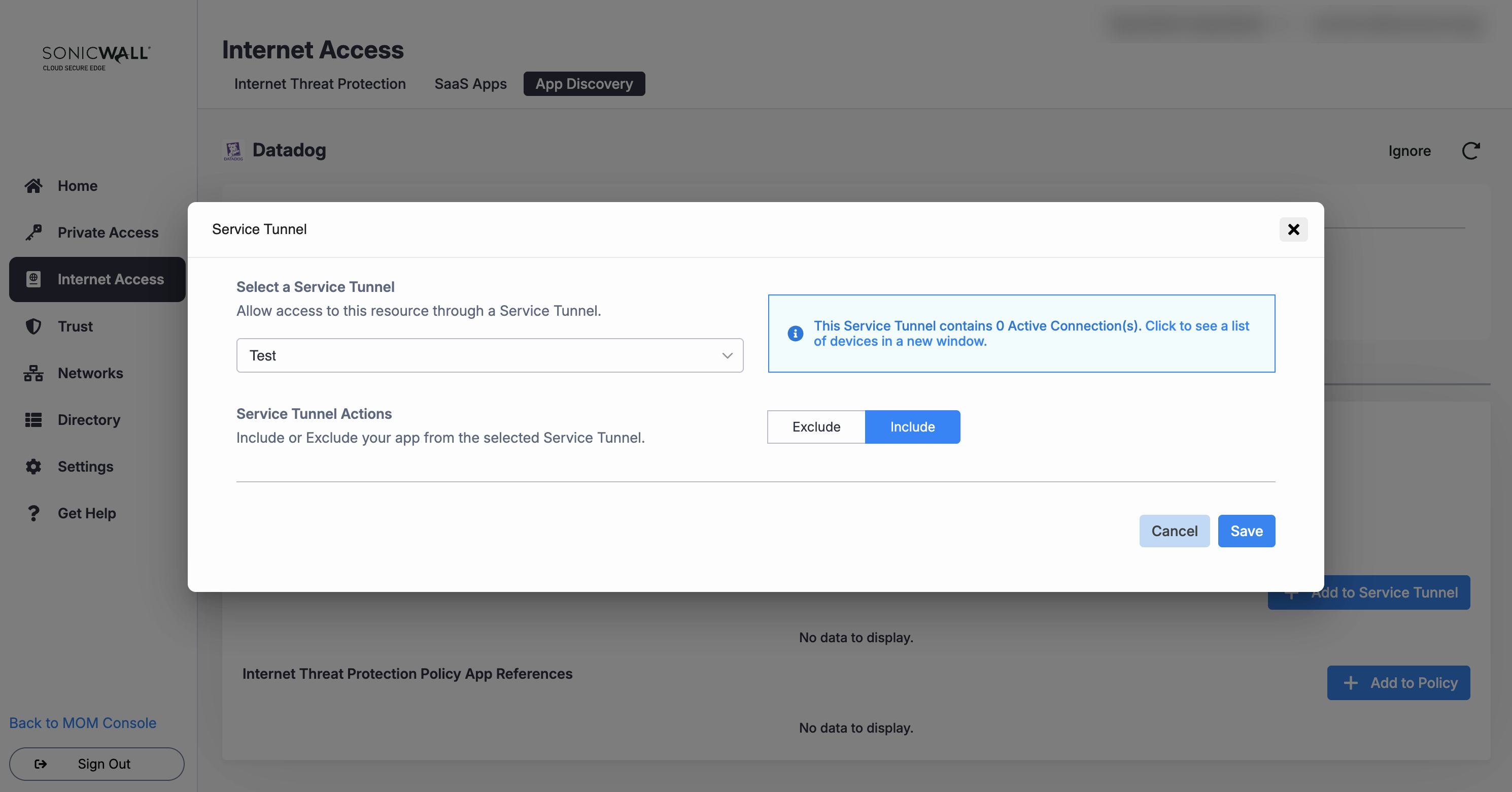
Including an app changes the IP address it sees your traffic come from. The traffic arrives from your Global Edge or Private Edge egress IP address instead of the user’s own network. If the app admits only traffic from addresses you have allowlisted, include it and allowlist that egress address once. See Secure SaaS Applications with IP Allowlisting.
Note: ITP does not evaluate traffic carried by a Service Tunnel. If you include an app in a Service Tunnel, its ITP policy stops applying to it. Choose one or the other for an app. Configuring both does not combine them.
Two limits apply to what you can select:
- Not every app can be routed through a Service Tunnel. The apps available in a Service Tunnel are a subset of the ones App Discovery shows. If you find an app in discovery but cannot select it in a Service Tunnel, contact SonicWall Support to ask for it to be added.
- Category is not yet available in ITP policies. You can filter the table by category, but an ITP policy matches named apps. To act on a category, filter the table by it and then select those apps in the policy individually.
You can also select apps from the policy side. In an ITP policy, pick them in the Application Blocking and Application Bypass sections. In a Service Tunnel, pick them in the include and exclude lists. Custom apps are selectable in both.
Create a custom app
If your users access an app that the catalog doesn’t cover, such as an internal tool on your own domain, create a custom app for it. CSE then attributes requests to the domains you list, and the app becomes selectable in ITP policies and Service Tunnels, like any other. See Create a Custom Application.
If the app is a public one that the catalog ought to cover, ask your SonicWall account team to add it. Adding it to the catalog covers every organization, but it takes longer than creating a custom app yourself.
Limitations
- A third-party web filtering solution on the device that intercepts DNS requests stops App Discovery from seeing them, because the requests never reach CSE. Apps accessed from that device are missing from the table.
- CSE matches apps by domain, not by fully qualified domain name (FQDN). Requests to every host under a domain count toward the same app, so you cannot split one domain into separate apps by subdomain.
What’s next
- Manage ITP Policies to block, allow, or bypass an app
- Publish a Service Tunnel to route an app through CSE
- Require Approved Accounts for AI Apps to allow an AI app for corporate accounts only
- Logins for where your users sign in from