Activate Cloud Secure Edge
Register and Activate Cloud Secure Edge in MySonicWall
- Last validated: May 7, 2026
Overview
To register and activate a Cloud Secure Edge (CSE) org, admins must sign into MySonicWall and enter a CSE Activation key.
Follow the steps below to activate CSE.
Steps to register Cloud Secure Edge in MySonicWall
1. Login to MySonicWall.
2. Navigate to My Workspace > Register Products.
3. Select a Tenant under which you want to register Cloud Secure Edge.
4. Enter your Cloud Secure Edge Activation key in the box with Serial Number/Activation Key/Assign Token. If you have both a SIA and SPA key, you can choose either one for this step.
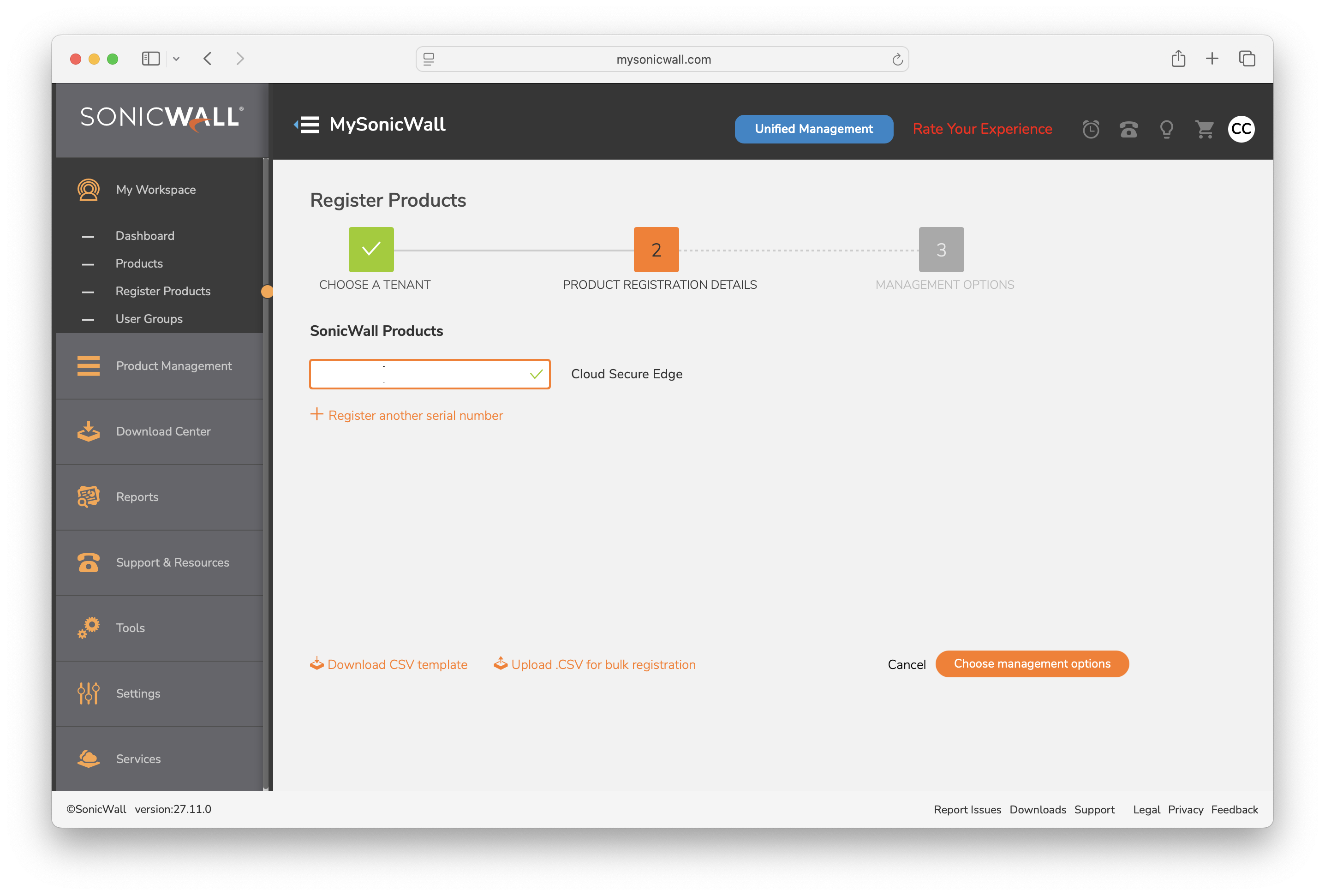
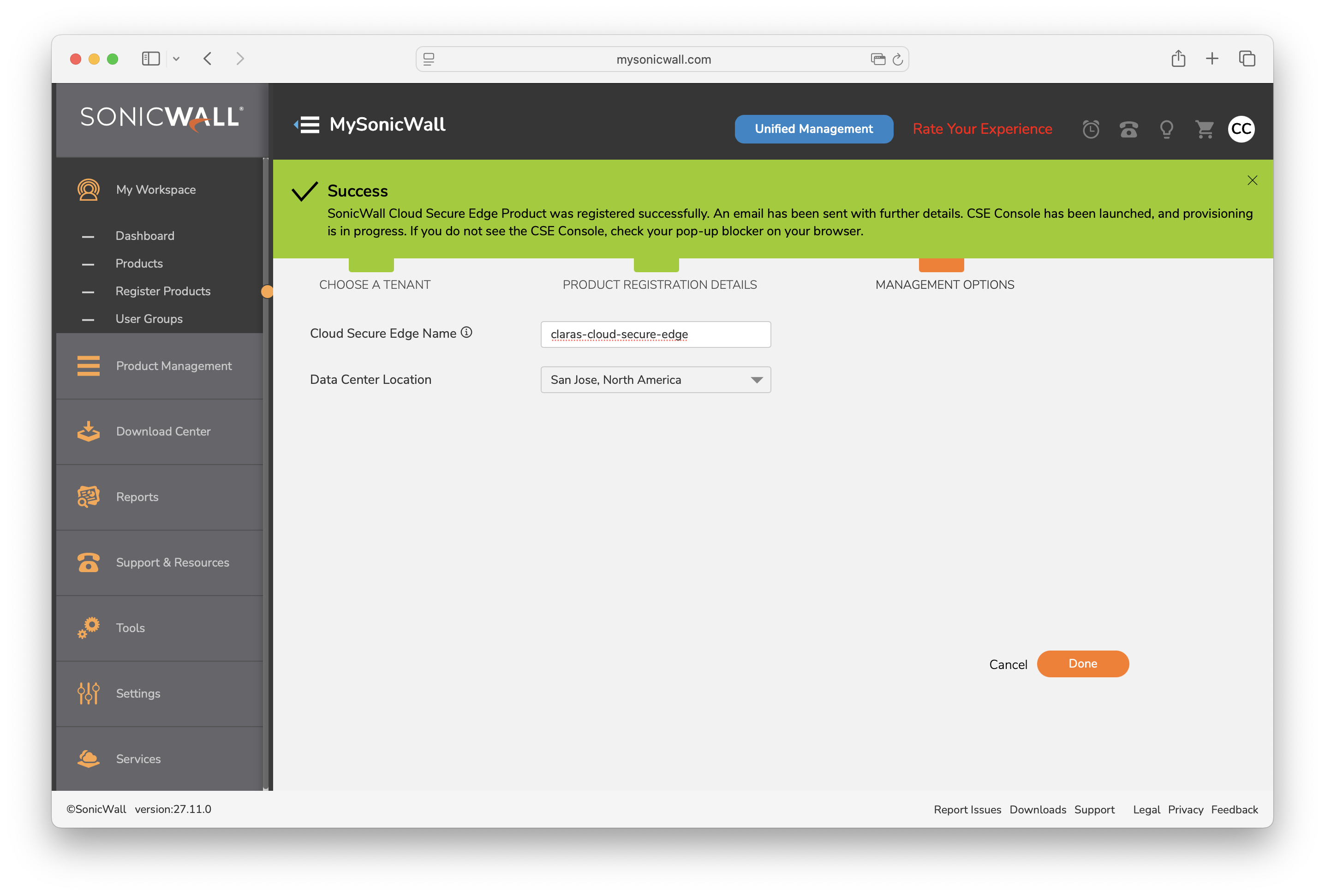
5. Enter a unique Cloud Secure Edge Name to identify on the CSE portal. Adhere to the below criteria to define the name:
-
Name should start with a letter.
-
Only lowercase letters a-z, numbers 0-9, and hyphen (-) are allowed.
-
The length of the name should be between 4 and 30 characters.
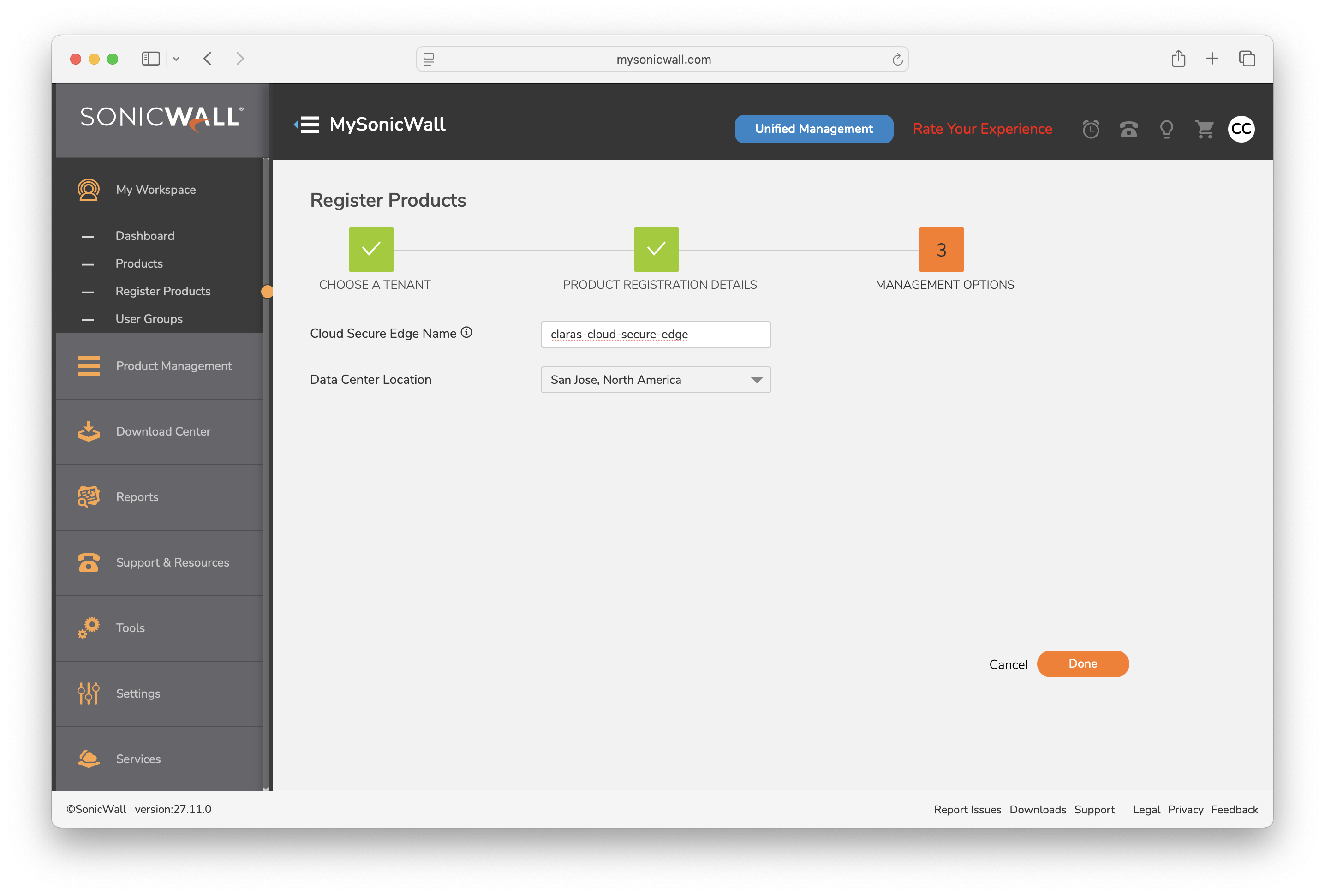
6. Update the data center Location if required; A data center location is selected by default.
7. Select Done.
Note: CSE provisioning takes several minutes to complete.
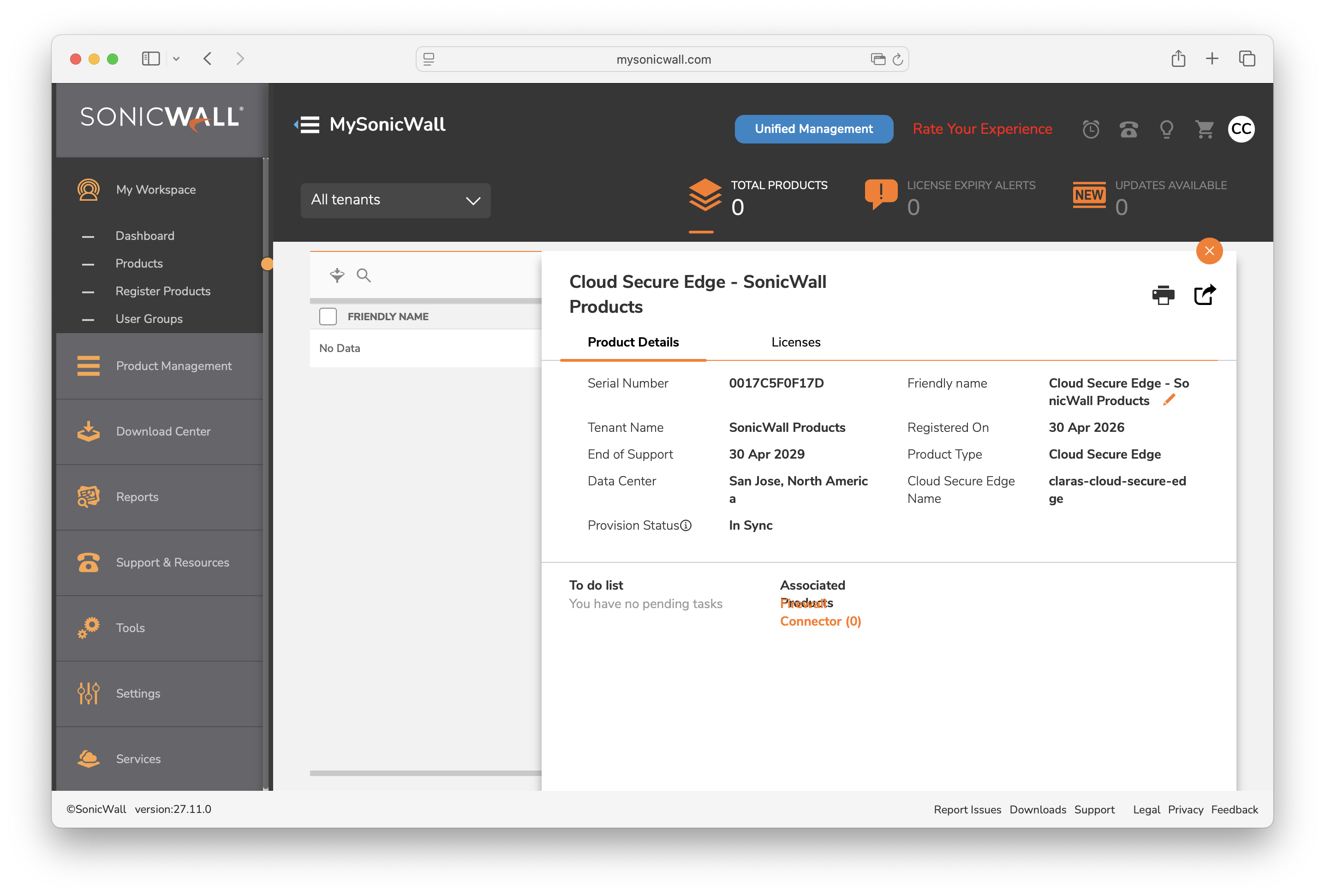
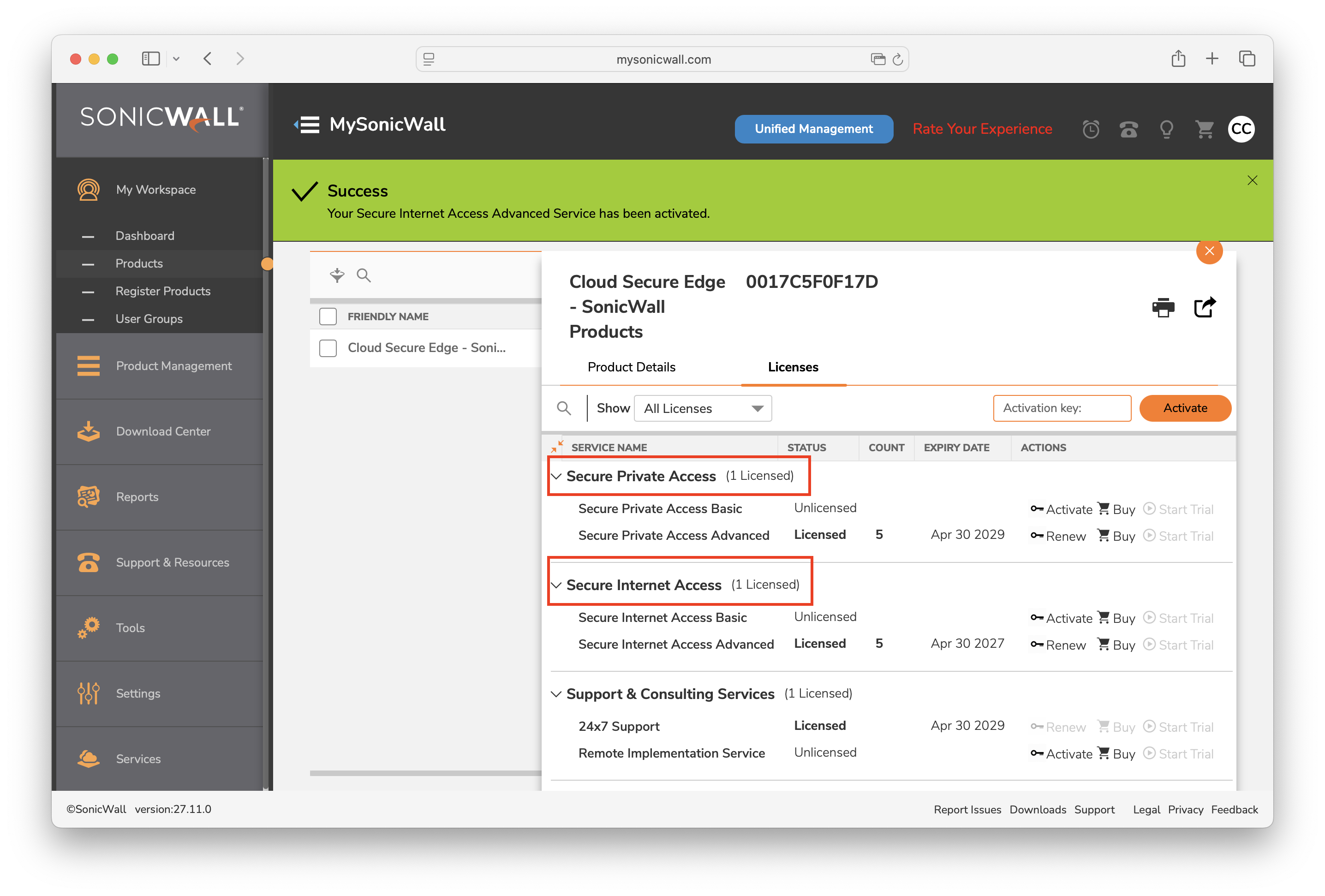
Upon successful provisioning, the service should be available on Capture Security Center. You can view the registered license under MyWorkspace > Products.
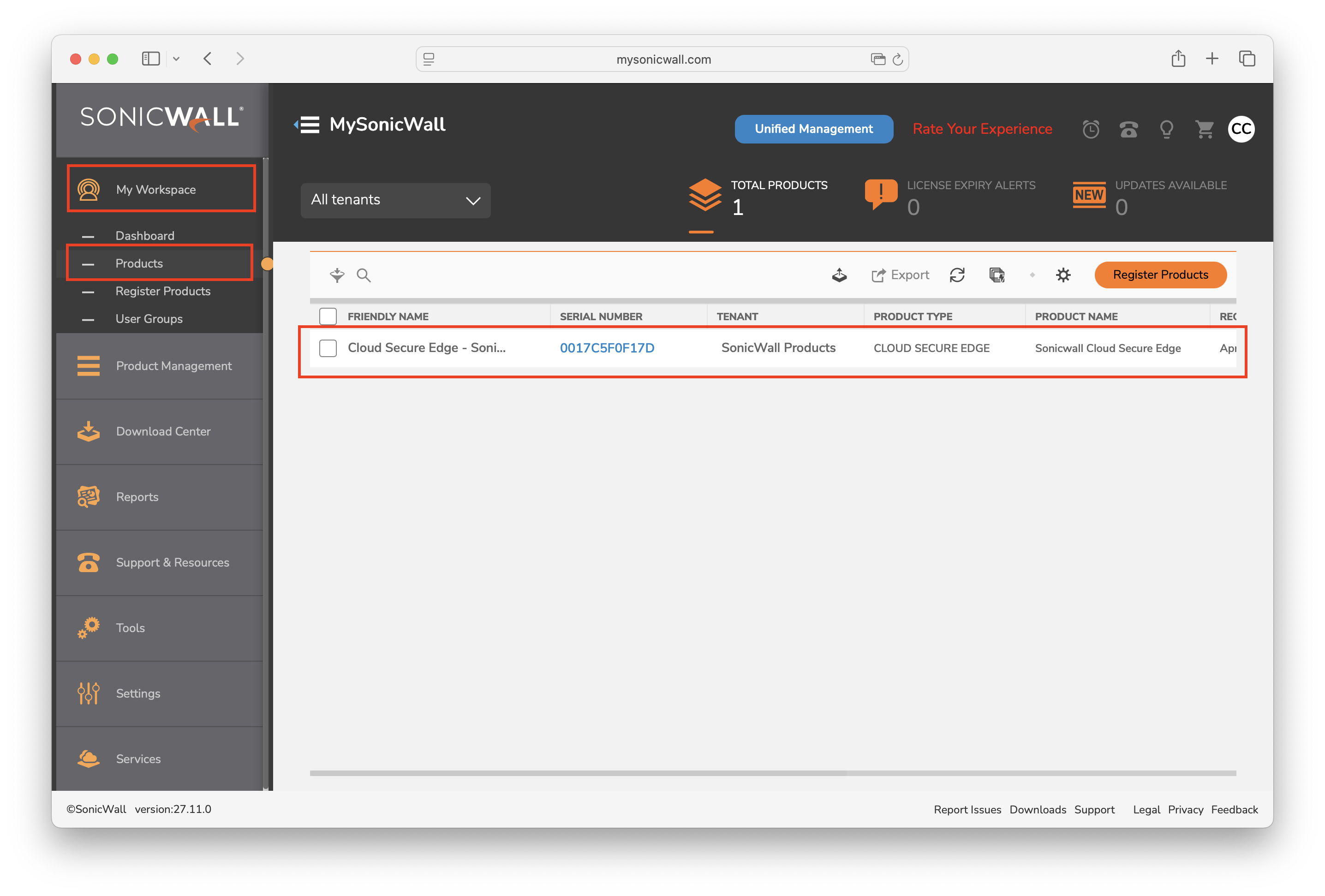
Important: To configure a Connector on a SonicWall firewall, ensure that the firewall is registered under the same MySonicWall tenant as the CSE license. The firewall does not need a license to use the Connector; a licensed CSE product under the same MySonicWall tenant is sufficient.
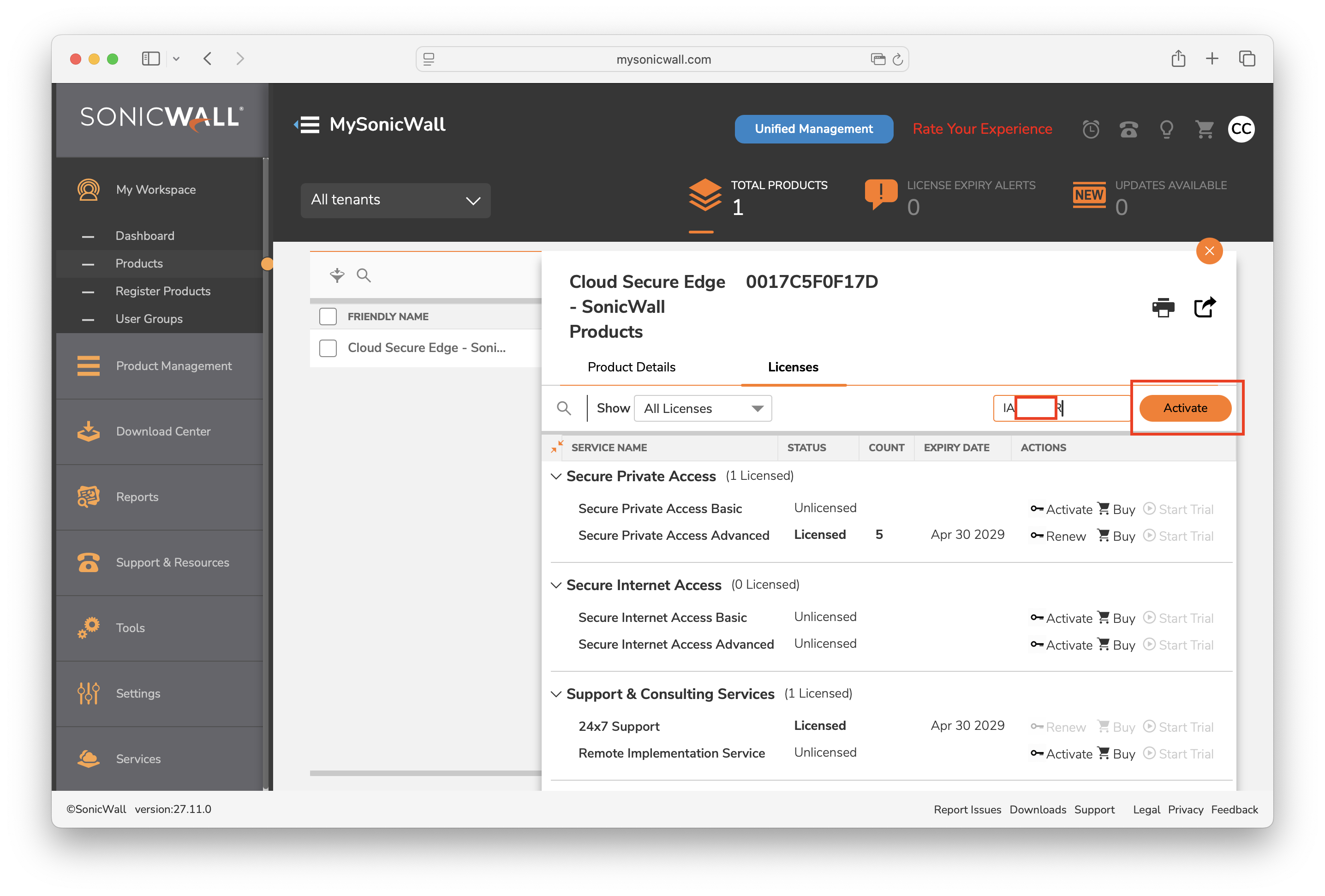
8. If you have a second activation key to apply, navigate from MyWorkSpace > Products, find and select your CSE Serial Number > License Details. You can input your second key here to activate both SPA and SIA on the same serial number.
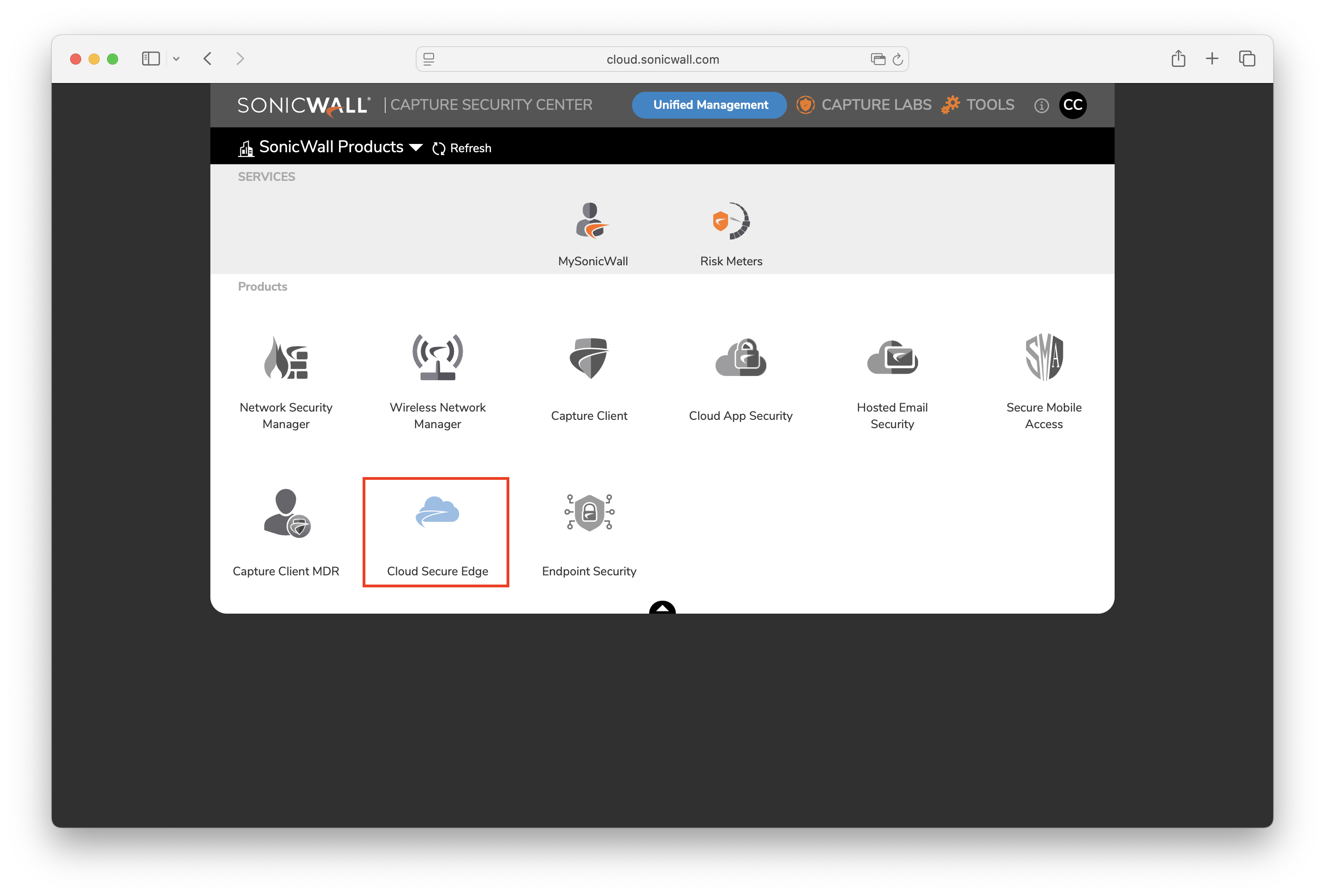
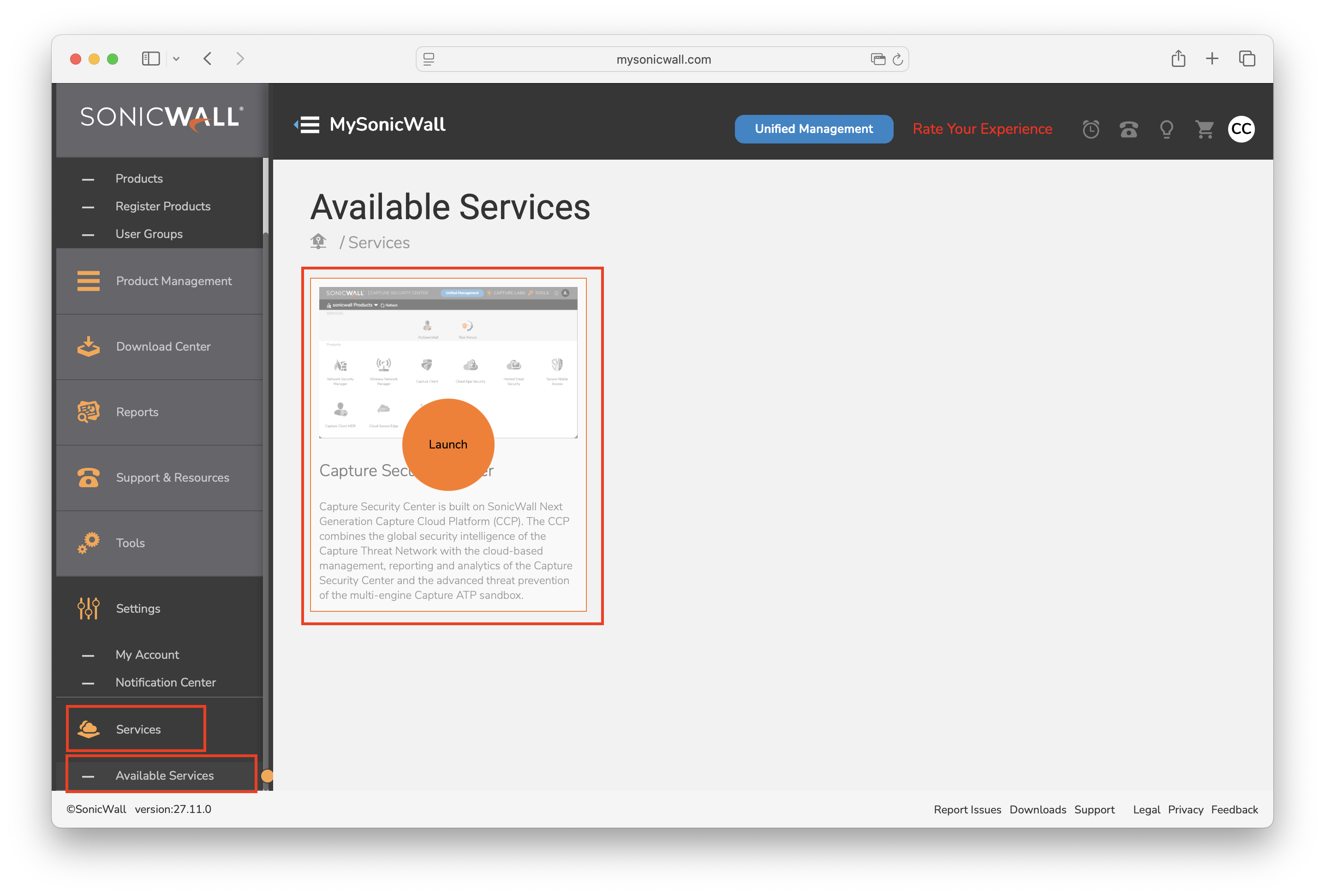
9. After you receive the confirmation email, launch CSE from the Capture Security Center: In MySonicWall, navigate from Services > Available Services, and hover over the Capture Security Center; select Launch.
10. Select your tenant in the Capture Security Center portal. If your tenant or product is unavailable, select the Refresh icon and check the dashboard.
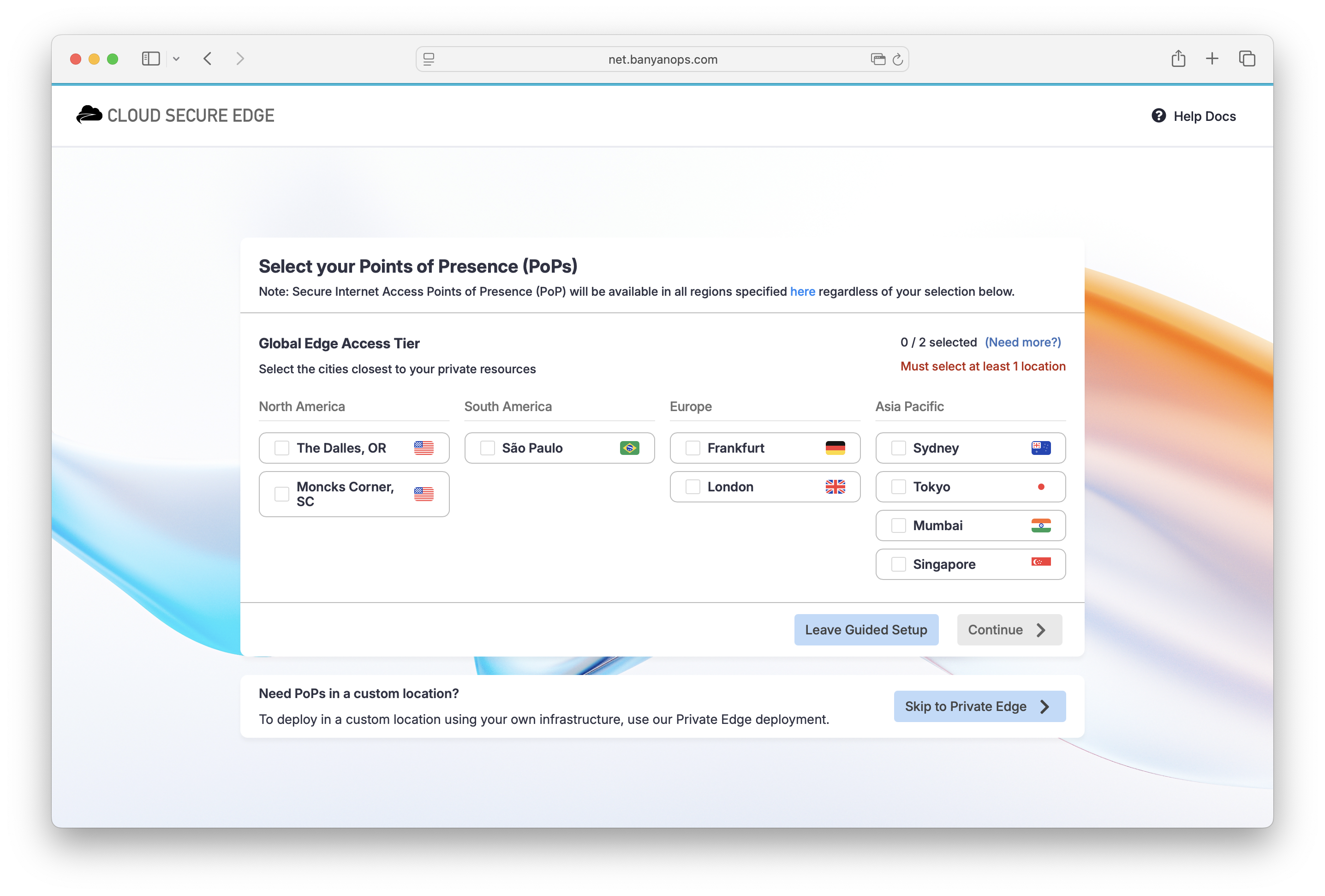
11. Select the Cloud Secure Edge icon to use your single sign-on (SSO) credentials to log into the product console, also known as the CSE Command Center.