Malware Download Protection
Automatically inspect and block malicious file downloads at the edge
- Last validated: Oct 16, 2026
- 7 minutes to read
-
Contributors

- Overview
- Pre-requisites
- How It Works
- File Center
- Exceptions and Bypasses
- Regional Failover
- File Size Limits
- Supported File Types
- Notification Reference
- Steps to Enable Malware Download Inspection:
Overview
Malware Download Protection adds real-time file inspection for users that have an Internet Threat Protection (ITP) policy applied to their devices. When enabled, files downloaded through the Secure Web Gateway (SWG) are automatically analyzed for malware before they reach the endpoint. Malicious or suspicious files are blocked, and the end user is notified immediately.
This feature can be enabled on a per-policy basis, giving admins granular control over which users and device groups are protected.
Pre-requisites
- mac or Windows device
- SIA advanced license
- ITP policy associated with your device
- Desktop app version
4.2.0or later
How It Works
For Admins
Malware Download Protection is configured in the CSE admin console at the ITP policy level. When the feature is enabled, the following occurs:
- TLS decryption is activated for devices assigned to the ITP policy.
- Supported file types downloaded through the SWG agent are inspected for malware.
- Files identified as malicious are blocked, and a Malware event is generated in the console under Visibility & Logging > Events. See Event types and properties for the full Malware event schema.
- Files that pass inspection are delivered to the user.
Note: Files downloaded from domains or URLs in your policy’s Domain and URL Bypass field are not inspected. Bypass is the single exception path across the entire ITP policy.
TLS decryption is required. Malware Download Protection is gated on TLS decryption, which is controlled by the Enable Advanced Configurations toggle in the ITP policy’s Assignment progression. If that setting is turned off, File Analysis is automatically disabled and the console surfaces a warning. Turning it back on restores File Analysis without re-configuration.
For End Users
Malware Download Protection works transparently in the background. In most cases, downloads complete normally with no noticeable delay. Here are the file statuses:
| File Status | Outcome |
|---|---|
| File passes static analysis | The file downloads automatically. No notification is shown. Processing typically takes less than two seconds. |
| File is sent for dynamic analysis | You’ll see an OS notification and a system tray indicator letting you know the file is being analyzed. |
| File is blocked | You’ll receive an OS notification that the file has been blocked. Clicking the notification opens the CSE app. |
| File passes dynamic analysis | The file downloads automatically once analysis is complete. |
| File is larger than the dynamic analysis size limit | The file is inspected by static analysis only. The download looks ordinary, with no notification, unless static analysis blocks it. See File Size Limits. |
File Center
The CSE desktop app includes a new File Center tab where you can view the status of files that have been inspected. This is where blocked files and files currently under analysis will appear.
| Field | Description |
|---|---|
| Status | Whether the file is under analysis, blocked, or allowed |
| Source | The URL from which the file was downloaded |
| File Name | Name of the downloaded file |
| Time | When the download was intercepted and analysis began |
| File Size | Size of the file (available in expanded view) |
| File Type | The type of file downloaded (available in expanded view) |
| File Hash | SHA-256 hash of the file (available in expanded view) |
| Request ID | Unique identifier for the request (available in expanded view) |
Search the File Center by source URL or file name to quickly find specific downloads.
Note: Under heavy download load, File Center buffers download notifications so that a burst of files does not overwhelm users with prompts. Files continue to be inspected and recorded as usual.
Exceptions and Bypasses
There are several ways files can be excluded from malware inspection:
| Exception Type | Details |
|---|---|
| Domain and URL Bypass | Traffic to bypassed domains and URLs is not intercepted by CSE and, thus, not inspected. |
Regional Failover
File Analysis traffic is inspected in regional analysis nodes. If the primary analysis region for a device becomes unavailable, CSE automatically redirects inspection to an alternate region. The failover is transparent to admins and end users — downloads continue to be inspected without intervention, and File Center records reflect the actual analysis region used for each file.
File Size Limits
Static analysis and dynamic analysis enforce different size limits.
| Analysis Stage | Size Limit |
|---|---|
| Static analysis | No size limit. Every supported file type is inspected statically, regardless of how large it is. |
| Dynamic analysis | 100 MB (megabytes). Files larger than 100 MB are not sent for dynamic analysis. |
What happens to a file over 100 MB
A file larger than 100 MB is still inspected by static analysis, and it is still blocked if static analysis finds it malicious. It is only the dynamic analysis stage that it skips. Because static analysis typically completes in under two seconds and shows no notification, the end user sees an ordinary download that either completes normally or is blocked right away. They never see the “submitted for analysis” notification, because no dynamic analysis takes place.
Compressed files
The 100 MB limit is measured on the file as it is downloaded through the SWG, and it applies to archives on the same terms as any other file. A ZIP, RAR, or 7-Zip archive over 100 MB skips dynamic analysis, exactly as an oversized executable does.
The limit is a CSE limit, set independently of the file size limits your SonicWall firewall enforces, so do not assume the two match.
Supported File Types
The following file types are inspected when downloaded through the SWG. They are grouped into three categories: executables and packages, productivity and document formats, and archives and compression formats.
Executables and Packages
| File Format | Extensions |
|---|---|
| Portable executables (PE) | .exe, .dll, .sys, .scr, .cpl |
| Mach-O files | .app, .dylib (macOS executables) |
| Disk images | .dmg, .iso |
| ELF files | Linux executables and shared libraries |
| Android packages | .apk |
| Java archives | .jar |
| Windows installers | .msi |
Productivity and Documents
| File Format | Extensions |
|---|---|
| Microsoft Word documents | .doc, .docx |
| Microsoft Excel spreadsheets and binary workbooks | .xls, .xlsx, .xlsb |
| Microsoft PowerPoint presentations | .pptx |
| Microsoft OneNote section files | .one |
| Office Open XML files | .docx, .xlsx, .pptx (and other OOXML formats) |
| Outlook messages | .msg |
| Adobe Acrobat PDF files | |
| Windows thumbnail cache | thumbs.db |
Archives and Compression
| File Format | Extensions |
|---|---|
| RAR archives | .rar |
| ZIP archives | .zip |
| 7-Zip archives | .7z |
| gzip compressed files | .gz, .tgz |
| bzip2 compressed files | .bz2 |
| xz compressed files | .xz |
| ACE compressed files | .ace |
Notification Reference
Below are the notifications end users may see when Malware Download Protection is active.
| Notification | Message |
|---|---|
| File submitted for analysis | <Filename> has been submitted for analysis. |
| File blocked | <Filename> has been blocked as malware. If you believe this to be incorrect, please contact your administrator. |
Steps to Enable Malware Download Inspection:
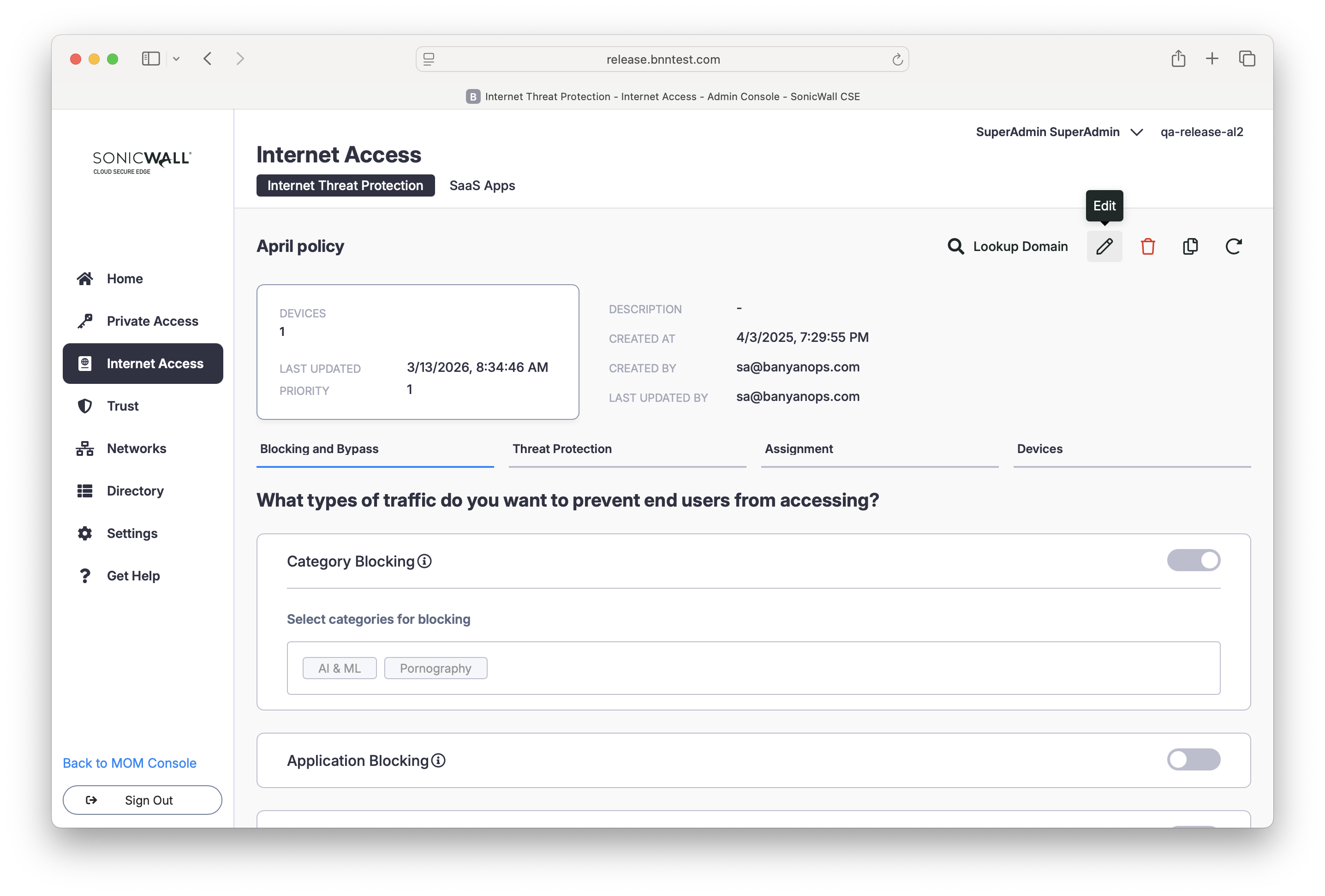
1. In the CSE Command Center, navigate from Internet Access > Internet Threat Protection > Policies. Select an existing policy or select + Create Policy. If you select an existing policy, select the Edit icon.
2. Navigate to Advanced Protection in your policy configuration, and toggle on File Analysis.
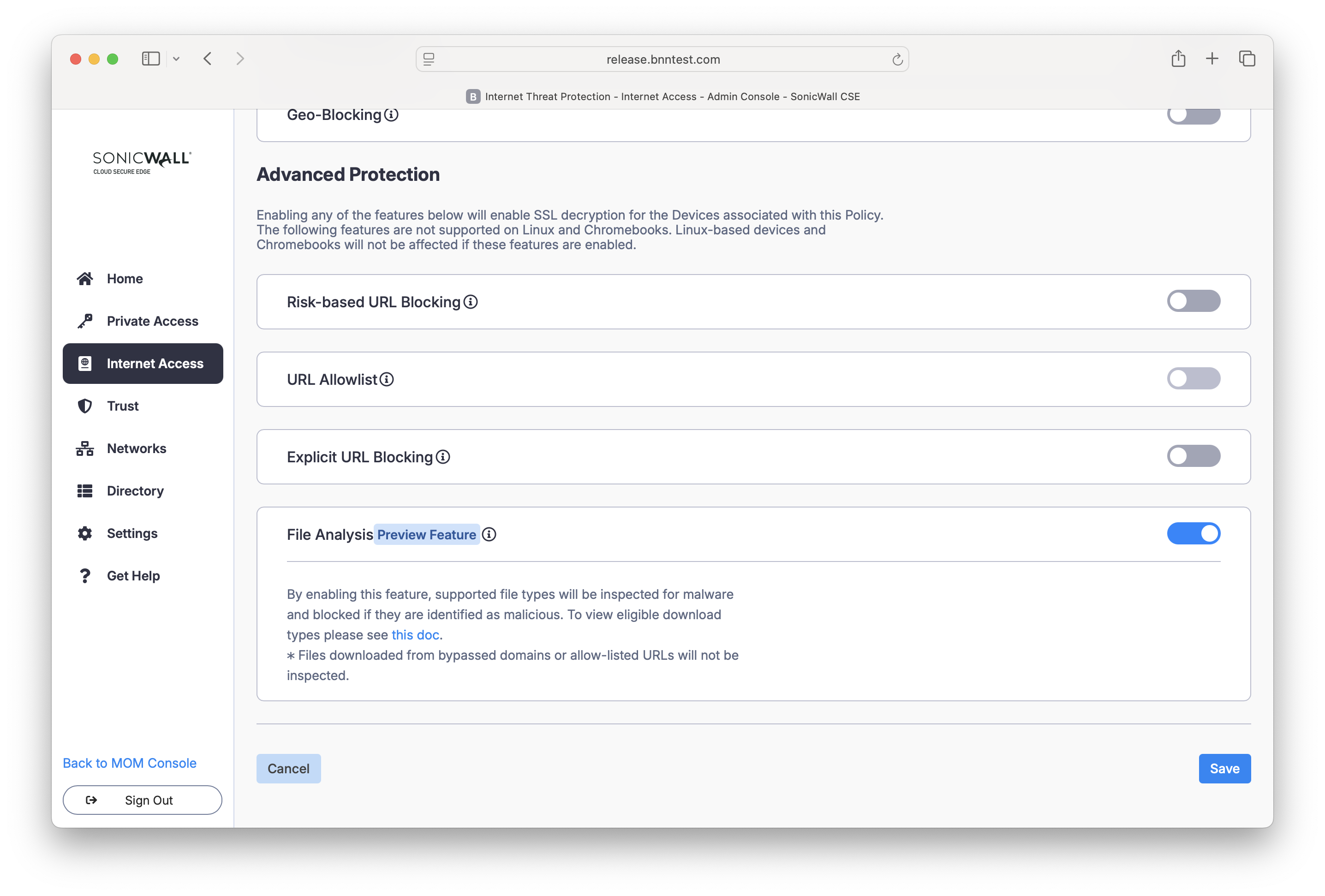
3. Save your policy configuration.