App Auto Update
How to enable or disable auto update for the CSE desktop apps in your org
- Last validated: Oct 19, 2026
- Overview
- When a new version becomes available for auto-update
- How auto update works
- Privileges and update triggers
- Steps to Enable or Disable App Auto Update
- Device Credential Auto-Renewal
Overview
For the recommended way to update existing installs before enabling this setting, see Update and Manage CSE Desktop App Versions.
Admins can use this feature to enable silent desktop app version updates to end users’ devices. This setting will be on by default for new orgs (i.e., orgs created after April 2026 release) and off by default for existing orgs.
Note: Desktop app version 4.2.0+ will auto update on next restart without user interaction or admin permissions necessary. The console toggle (org-wide) controls silent auto update. The mdm_disable_auto_update flag in mdmconfig.json (per-device) controls whether the user sees an update notification.
App Auto Update applies to the macOS and Windows desktop apps only. It does not update the Linux desktop app, even when the console toggle is on. To update a Linux device, install the new .deb or .rpm package on it. See Distributing the Linux desktop app.
When a new version becomes available for auto-update
A newly released desktop app version is not enabled for auto-update the moment it is published. CSE makes each new version available for auto-update approximately one week after its release. As a result, auto-update typically trails the newest published version by about one release.
This is different from a mobile app store. Phone app stores offer the newest version almost as soon as it ships, so users sometimes expect the CSE desktop app to behave the same way. It does not: with auto-update enabled, a device moves to the version that is currently enabled for auto-update (on next launch for v4.2.0+) — which is not necessarily the newest version on the download page.
To move to a newer version before it is enabled for auto-update, update the app manually from the desktop app download page.
How auto update works
| Console Toggle (Silent Auto Update) | MDM Flag (disable=true) | 4.2.0+ Behavior | Pre-4.2.0 Behavior |
|---|---|---|---|
| ON | false / not set | Silent auto update on next launch, no notification | No silent update; user gets notification |
| ON | true (disabled) | No silent update; no notification | No silent update; no notification |
| OFF | false / not set | No silent update; user gets notification | No silent update; user gets notification |
| OFF | true (disabled) | No silent update; no notification | No silent update; no notification |
Privileges and update triggers
- No escalated privileges required. The desktop app can auto-update without administrator or elevated privileges on the end user’s device (v4.2.0+). End users do not need local admin rights for the update to apply.
- What triggers the update depends on the mode:
- Silent auto-update (console toggle on, v4.2.0+): the update is applied automatically on the next app start, with no notification and no user action.
- Update notification (console toggle off, or pre-4.2.0): the end user receives an update prompt and applies it by clicking to update.
Steps to Enable or Disable App Auto Update
-
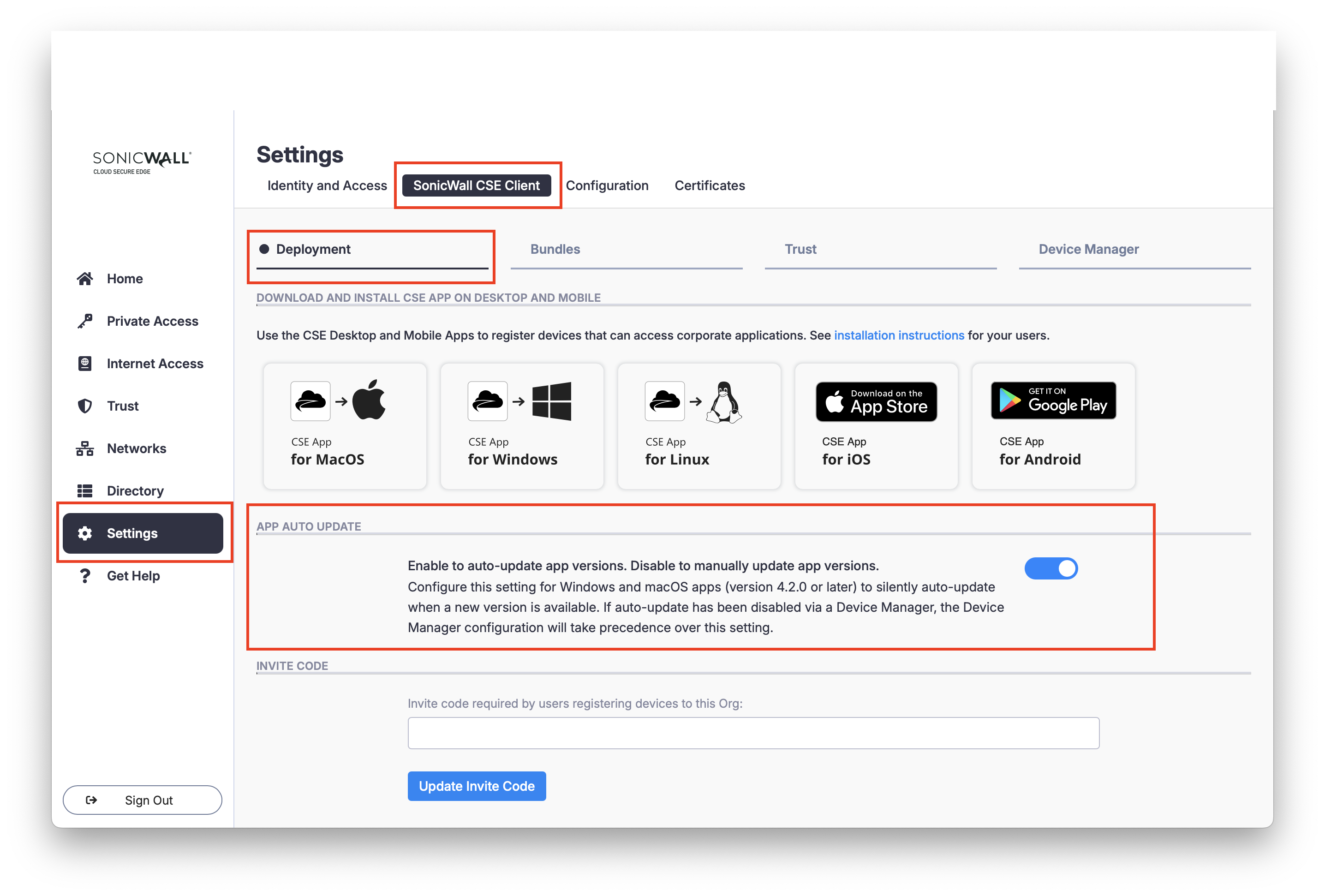
In the CSE Command Center, navigate from Settings > SonicWall CSE Client > the Deployment tab.
-
Under the App Auto Update section, toggle on to enable auto update or toggle off to disable auto update and continue manually updating app versions.
Device Credential Auto-Renewal
In addition to app version updates, desktop app v4.3.0+ silently renews device certificates and long-lived tokens in the background. Users never see a re-registration prompt, and enrolled devices stay enrolled across renewal cycles. No admin or end-user action is required.
On Windows, desktop app v4.2.0 through v4.5.0 do not reliably renew device registration on their own. End users have to open the app and renew manually before registration expires, and devices that miss that window have to be re-registered. Update Windows devices to v4.5.1 or later, which contains the fix. See Update and Manage CSE Desktop App Versions.
For details on the device certificate lifecycle, see Device Certificates - Management and Expiration.