App-based Device Verification
Verify the device through the CSE app instead of the browser, so end users sign in without certificate prompts or certificate errors
- Last validated: Nov 9, 2026
Overview
When an end user signs in to Cloud Secure Edge (CSE) in a browser, CSE uses the device certificate that the CSE app issued to that device as a second authentication factor. This is certificate-based multi-factor authentication (MFA), and the end user cannot complete the sign-in until CSE receives the certificate. By default, the browser presents this certificate. This can cause two problems:
- The browser shows a certificate prompt. End users who cancel the prompt deny themselves access, and end users who allow the certificate only once are prompted again at every sign-in.
- The browser presents an outdated certificate, or none, because the browser’s certificate store is not in sync with the certificate that the CSE app holds. Sign-in then fails with a device verification error.
With app-based device verification, the CSE app presents the device certificate to CSE directly, outside the browser. The end user sees no certificate prompt, and the contents of the browser’s certificate store do not affect sign-in.
App-based device verification works with any identity provider (IdP) that you use for end-user sign-in. It is active when both of the following are true:
- Org-wide Device Trust Verification is enabled.
- The end-user redirect URL, in CSE and in your IdP, is
https://{ORGNAME}.portal.banyanops.com/v2/callback.
Note: App-based device verification applies to end users who sign in on a Mac, Linux, or mobile device. It applies to user sign-in only; device registration still prompts for a certificate.
Prerequisites
- Desktop app v3.14 or later.
- An end-user IdP configured in CSE. See Set Up an Identity Provider.
Set up app-based device verification
Step 1: Enable org-wide Device Trust Verification
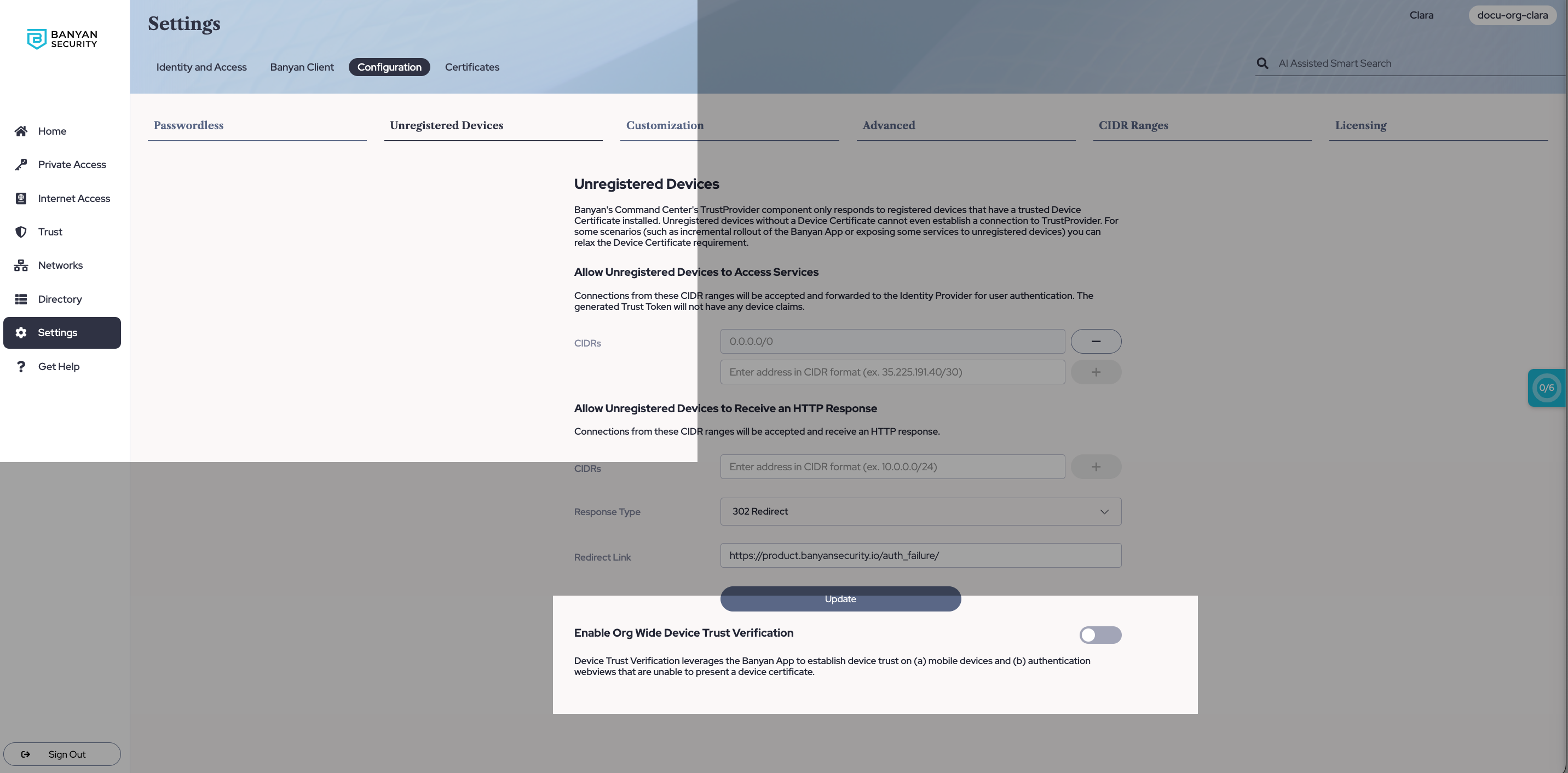
1.1 In the Command Center, navigate from Settings > Configuration > Unregistered Devices.
1.2 Turn on Enable Org Wide Device Trust Verification.
Step 2: Set the redirect URL in your identity provider
2.1 In your IdP, open the app that you created for CSE end-user sign-in.
2.2 In every field of that app that holds the CSE redirect URL, enter https://{ORGNAME}.portal.banyanops.com/v2/callback. Replace {ORGNAME} with the org name shown at the top right of the Command Center. Depending on the IdP and protocol, this field is called the sign-in redirect URI, the reply URL, or the Assertion Consumer Service (ACS) URL.
If the app lists https://{ORGNAME}.trust.banyanops.com/v2/callback, replace it. If your IdP accepts more than one redirect URL, you can add the portal URL first and remove the trust URL after you complete Step 3, so that end users can sign in during the change.
2.3 If you also created a device registration app in your IdP, repeat Step 2.2 for that app.
Step 3: Set the redirect URL in CSE
3.1 In the Command Center, navigate from Settings > Identity and Access > End User.
3.2 Set the Redirect URL to https://{ORGNAME}.portal.banyanops.com/v2/callback, and then select Update User Identity Provider Config.
3.3 If you use a device registration provider, navigate to Settings > Identity and Access > Device, select Edit, set the Redirect URL to the same value, and then select Save.
Note: The redirect URL in CSE must match a redirect URL in your IdP app. If the two do not match, end users cannot sign in. See Troubleshooting.
Step 4: Verify sign-in
On a Mac or Linux device that has the CSE app installed and registered, sign in to a CSE-protected service in a browser. The sign-in completes without a certificate prompt.
Troubleshooting
End user still sees a certificate prompt when signing in
- Verify that Enable Org Wide Device Trust Verification is turned on.
- Verify that the redirect URL in your IdP app and in Settings > Identity and Access > End User is
https://{ORGNAME}.portal.banyanops.com/v2/callback.
End user sees “Admin has not setup IdP Correctly”
Verify that the Redirect URL in Settings > Identity and Access > End User is https://{ORGNAME}.portal.banyanops.com/v2/callback, and that the same URL is listed in your IdP app.