Grant CSE Access to External Guest Users Using Entra ID B2B
- Last validated: Aug 3, 2026
Overview
Use this guide to grant Cloud Secure Edge (CSE) access to external guest users (for example, 3rd-party contractors, vendors, or partners) that you invite into your Microsoft Entra ID tenant with Entra B2B Collaboration.
Scope: Inviting guest users and managing their licensing is standard Microsoft Entra functionality — it is not specific to CSE, so this guide links to Microsoft’s documentation for those steps rather than reproducing them. The only CSE-specific configuration is mapping the guest group to a CSE role and access policy (Step 3). You do not create a separate SAML application for B2B — guests use your existing CSE ↔ Entra integration.
Because Entra External Identities bills on a Monthly Active Users (MAU) model with a free tier of 50,000 MAU, you can onboard a large number of contractors at no additional license cost.
How it works
- You invite guests into Entra (standard Entra B2B) and place them in a security group.
- Guests authenticate through your existing CSE Entra ID integration; Entra includes their group membership in the SAML assertion.
- CSE maps that group to a role and access policy, granting (or revoking) access centrally.
Prerequisites
- CSE is already integrated with Entra ID as your identity provider. This guide reuses that integration; it does not create a new one. If you have not set this up, complete Set up Auto-Configuration for Entra ID (Azure AD) first.
- Entra External Identities is enabled for guest invitations. Guest invitation and MAU billing are Microsoft features — see Microsoft’s External Identities pricing and linked-subscription documentation. The free tier covers the first 50,000 monthly active users.
Steps
Step 1: Invite the guest users and add them to an access group (in Entra).
Step 2: Make sure the guest group is assigned to your existing CSE Entra application and that group claims are emitted.
Step 3: Map the group to a CSE role and access policy (in CSE).
Step 1: Invite guests and add them to an access group (Microsoft Entra)
This step uses standard Microsoft Entra B2B functionality. Follow Microsoft’s documentation:
- Create a security group that will be used to grant CSE access (for example,
SEC-ZTNA-Contractors-Access). See Microsoft’s Create a group and add members. - Invite your contractors as guest users and add them to that group. See Microsoft’s Add and invite B2B guest users.
What CSE needs from this step: a single Entra security group containing your guest users. You will map this group in CSE in Step 3, so note its name and Object ID.
Step 2: Assign the guest group to your existing CSE Entra application
You do not create a new SAML / Enterprise Application for B2B. Use the CSE Entra application that was created when you integrated CSE with Entra ID (see Set up Auto-Configuration for Entra ID).
2.1 In the Entra admin center, open Enterprise applications, and select your existing CSE application (for example, SonicWall CSE TrustProvider).
2.2 Under Users and groups, add the guest access group from Step 1.
2.3 Confirm that group claims are configured so Entra sends group membership to CSE in the SAML assertion.
Note: If group claims were already configured during your initial Entra integration, you only need to add the guest group under Users and groups.
Step 3: Configure Role-Based Access in CSE
CSE role configuration maps the Entra group to a CSE role, and the role to an access policy.
3.1 In the CSE Command Center, navigate from Directory > Roles.
3.2 Select + Add Role, and enter a Role Name (e.g., Contractors).

3.3 In the Role configuration, select + Add Role Attribute, and then select By Group from the dropdown menu.
3.4 Select + Add Groups, and enter the Object ID of the Entra ID group from Step 1 (e.g., SEC-ZTNA-Contractors-Access). Select Add “SEC-ZTNA-Contractors-Access”.

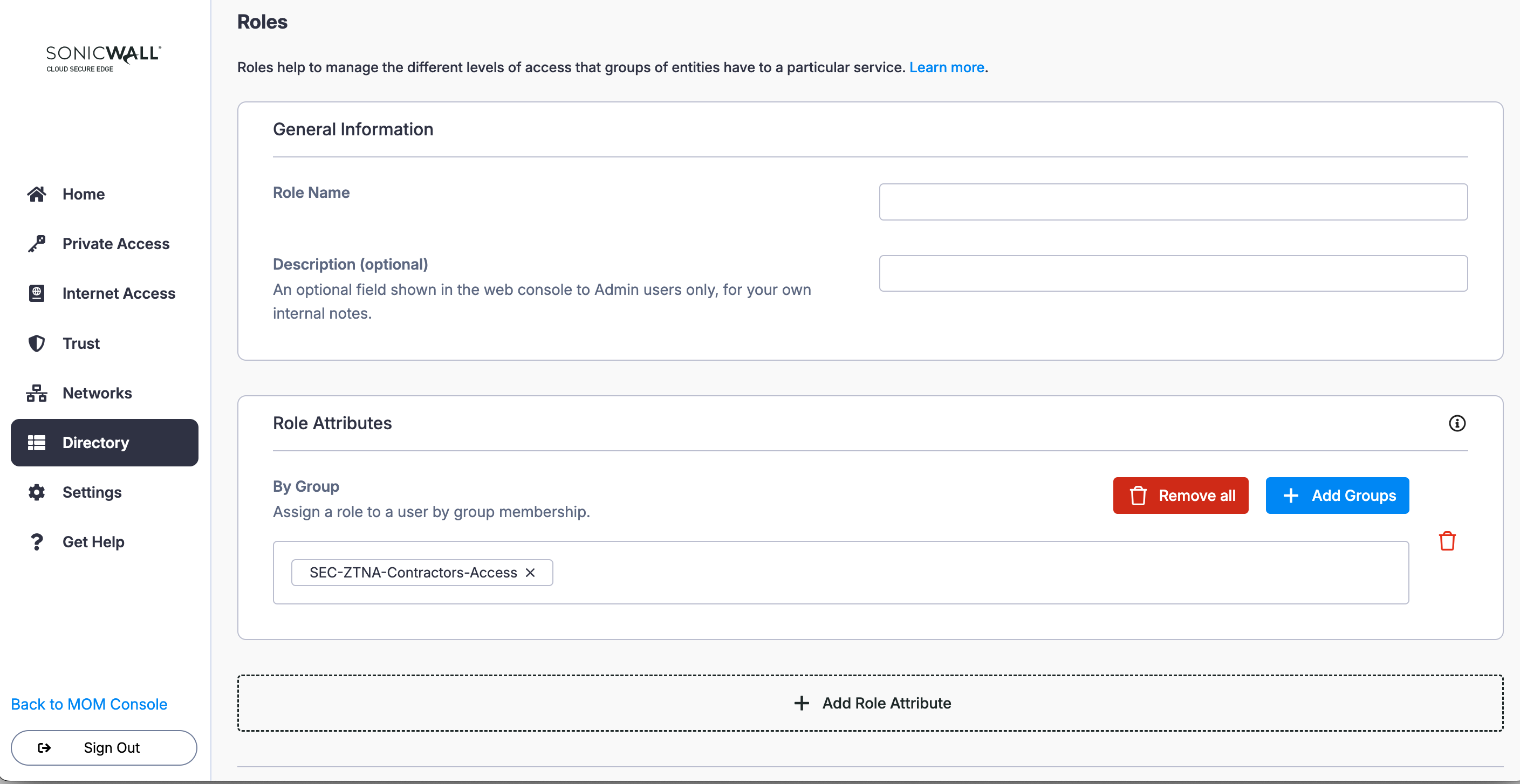
3.5 Save the Role configuration.
3.6 In the CSE Command Center, navigate from Private Access > Access Policies.
3.7 Create or edit the relevant access policy (e.g., the policy that grants access to your ZTNA resources).
3.8 In the policy, assign the role you created in Step 3.2 (e.g., Contractors).
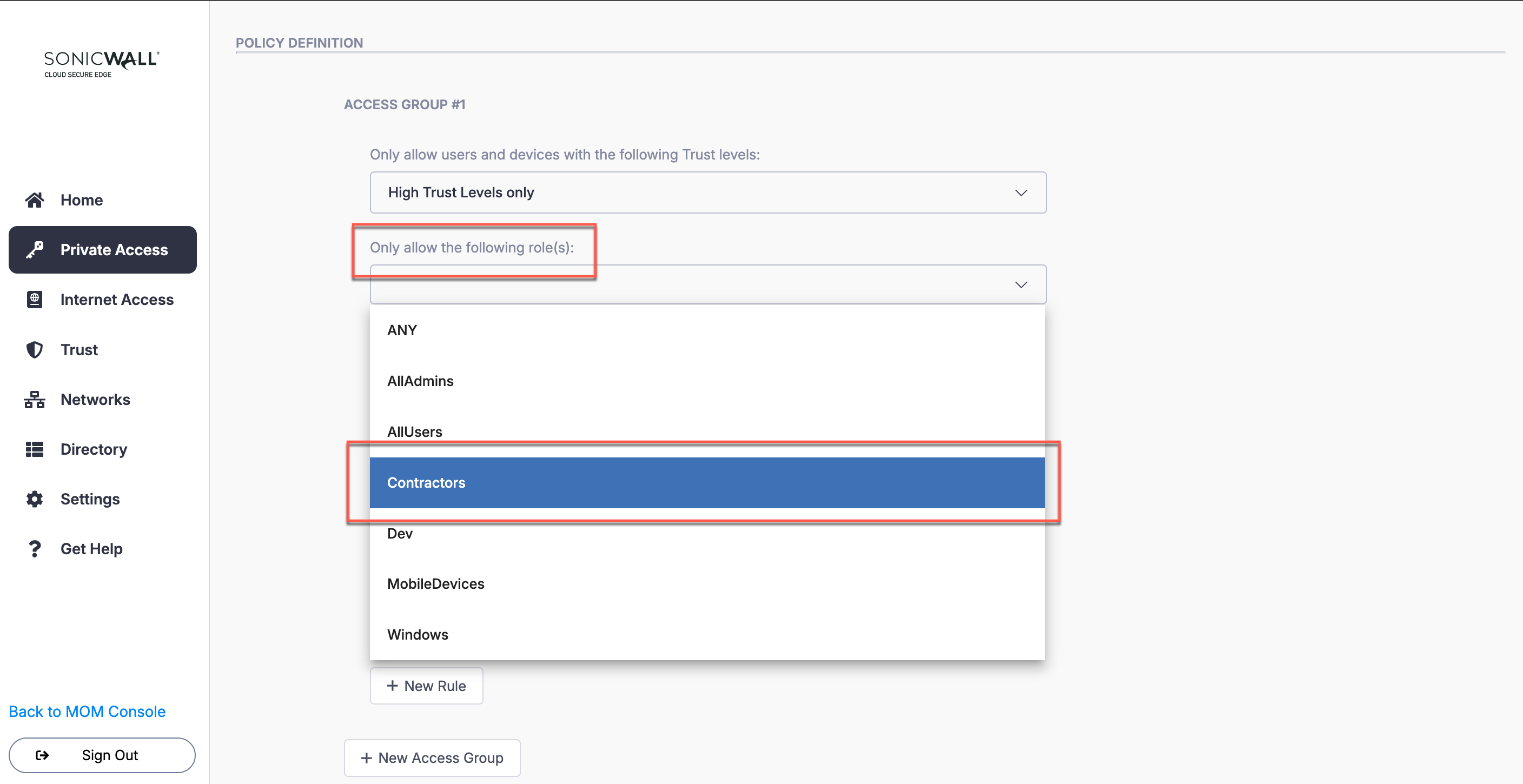
3.9 Select Create Policy or Submit changes to your existing policy.
Advanced Scenario: Handling Multiple Contractor Groups
If you have multiple contractor teams (e.g., from Company A and Company B) and you want to grant them different levels of access, you can extend the above model as follows:
-
Create Groups (Entra ID): Create separate Security Groups for each contractor team (e.g.,
SEC-ZTNA-Contractors-CompanyA,SEC-ZTNA-Contractors-CompanyB). -
Assign Groups (Entra ID): In your existing CSE Entra application, navigate to Users and groups, and add both (or all) new groups.
-
Configure Roles in CSE: Create a CSE Role named
Company A. Map it to the Object ID of theSEC-ZTNA-Contractors-CompanyAgroup; Create a CSE Role namedCompany B. Map it to the Object ID of theSEC-ZTNA-Contractors-CompanyBgroup. -
Configure Policies in CSE: Create an access policy that grants access to
Server-Cluster-Aand assign it theCompany Arole; Create another access policy that grants access toServer-Cluster-Band assign it theCompany Brole.
Note: The above configuration allows you to manage access for all external partners centrally from Entra ID by simply adding and removing contractors from their respective groups.
Summary
-
Contractor(s) receives and accepts the Entra ID B2B invitation.
-
Admin adds the contractor’s Guest User account to the
SEC-ZTNA-Contractors-Accessgroup. -
Contractor opens the SonicWall client and attempts to log in: They are redirected to the Microsoft sign-in page; They enter their email (
contractor@their-company.com). Entra ID redirects them to their own company’s sign-in page to authenticate. -
After successful login, Entra ID generates a SAML token containing their membership in the
SEC-ZTNA-Contractors-Accessgroup. -
Cloud Secure Edge receives the token, finds the matching Group ID, assigns the user the Role
Contractors, and grants access based on the access policy for that role. -
Optional: To revoke access, admins can remove the Guest User from the
SEC-ZTNA-Contractors-Accessgroup.